Design
Framer: Understand How to Create a Website with AI
Framer is a platform that enables the creation of interactive digital interfaces, combining visual design with advanced development features.
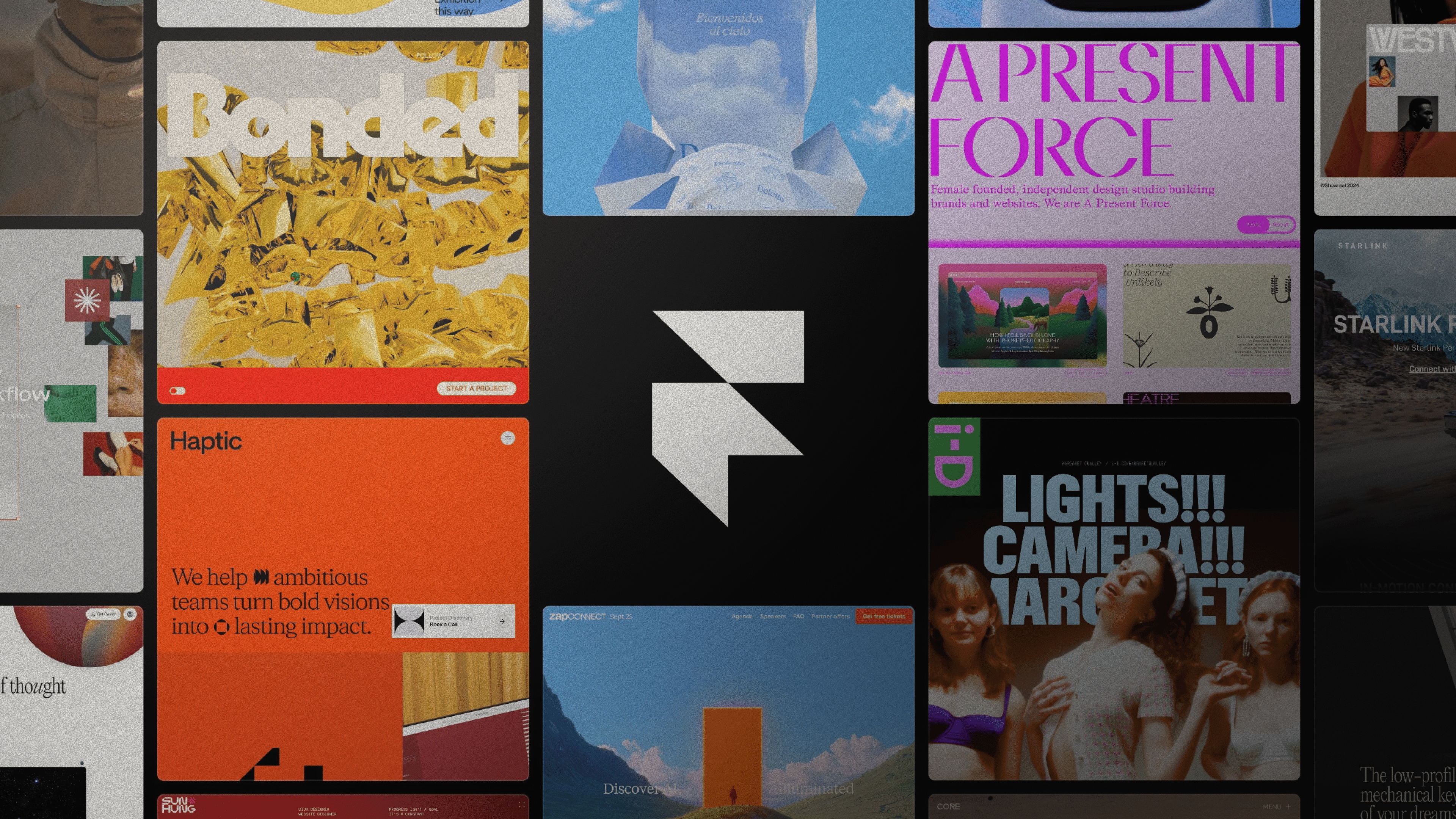
Framer: Understand How to Create a Website With AI
The Framer is a platform that came to revolutionize interface design and interactive prototyping, combining visual creation with the ease and sophistication of artificial intelligence.
With it, it is possible to create modern, responsive websites with a high level of customization without relying exclusively on code, ensuring agility and accessibility.
In addition to simplifying the work of designers and developers, Framer can also be used by marketing professionals, entrepreneurs, and creators, who can build functional pages in just a few minutes.
Read our article and understand how Framer works, its differentiators, and how to use it to create a website with AI in a practical and efficient way. Shall we begin?
What Is Framer?
The Framer is a platform that allows the creation of interactive digital interfaces, including complete websites, combining visual design with advanced development features.
One of the platform's differentiators is its ease of use, making it possible for even those without programming experience to structure professional pages, inserting components such as buttons, images, and entire sections in an intuitive way.
This ease of development makes Framer accessible to different profiles: from beginners to more experienced professionals, simplifying creation and making navigation more dynamic and engaging.
In addition, Framer also allows integration with design tools such as Figma and Sketch, making it easier to continue projects that have already been started.
The Origin of Framer
The Framer was created by two Dutch designers, Koen Bok and Jorn van Dijk, who felt the need for more complete solutions for interface creation.
At that time, the available tools had difficulty bringing together, in an efficient way, visual elements and the interactivity of prototypes.
With that in mind, they developed a platform that would meet the real needs of those who build digital products.
What Is Framer For?
The Framer is a robust tool that combines design and development, simplifying the creation of websites and interfaces in a fast, efficient, and intuitive way.
This tool makes it possible to test ideas, create realistic prototypes, align teams, and collect feedback before the final development.
In addition, by offering a visual editor and real-time collaboration, Framer streamlines processes and improves the user experience.
What Is the Goal of Framer?
The Framer was created to bring together two departments that usually work separately: design and development.
In this way, its goal is to provide designers with more autonomy, allowing the creation of functional prototypes without needing advanced technical knowledge.
In addition, the platform encourages collaborative work, bringing different professionals together in the same environment. In this way, teams can build, test, and adjust projects quickly, efficiently, and in an integrated manner.
How Do You Start Using Framer?
To use Framer, there are a few important steps that make project creation practical. Check out a simplified step-by-step guide below:
Create an Account on Framer
Access the platform's official website (framer.com) and sign up. After that, you can choose between the free version or a paid plan, which unlocks more advanced features.
In addition, you can also use it directly in your browser or install the app on your computer, depending on your needs.
Access Framer
If you choose the web version, you need to log in through the website. If you use the app, just open the program and sign in with your details. In both cases, after accessing the tool, you will be taken to the dashboard.
Create the First Project
Inside the dashboard, the first step is to select the option to create a new project. This will open a blank canvas, where you can start building your website or prototype from scratch.
How to Create a Website With AI Using Framer?
To create a website with artificial intelligence in Framer, the process is also simple, fast, and intuitive. Below, see the practical step-by-step guide:
1. Access the AI Feature
After accessing the platform, use the automatic page generation feature (Framer AI), which allows you to start the project without having to begin from scratch.
2. Write a Detailed Prompt
Describe the website you want to create, including information such as:
Type of website;
Target audience;
Visual style;
Desired sections.
Remember that the more specific the prompt is, the better the project generated by the AI will be.
3. Generate the Layout Automatically
With your prompt defined, Framer creates a complete page with structure, text, and initial visual components.
4. Customize the Site
After the initial generation, it is possible to edit all elements visually:
Adjust colors, typography, and spacing;
Change text and images;
Reorganize sections;
Add animations and interactions.
All of this is done without code, just by drag and drop.
5. Refine It With the AI Itself
You can keep using AI to improve the site:
Request layout adjustments;
Generate new text;
Create new sections;
Test design variations.
6. Publish the Site
With everything ready, now all you have to do is click “Publish.” The advantage is that Framer offers a free domain or allows you to connect your own domain, putting your website live quickly.
It is worth remembering that how you write the prompt is crucial to the result. So, treat the prompt like a marketing briefing to reach the project you want.
Conclusion
Framer is revolutionizing website creation, making the process more agile, accessible, and strategic. With just a few commands, you can create a functional website and optimize the launch of digital projects.
To create structured and efficient pages, get to know MDN Digital, an agency that builds online presence with a focus on performance, combining strategy, design, paid traffic, and optimization to turn websites into true growth assets.


